Workspace MCP Quickstart
This guide connects an external MCP client to an active OpenBB Workspace browser session through the hosted Workspace MCP endpoint.
Prerequisites
Before you start:
- OpenBB Workspace is open in your browser at pro.openbb.co.
- Your MCP client supports HTTP MCP servers.
- You can edit your MCP client configuration.
The Workspace tab must stay open and connected while the external agent uses Workspace MCP tools.
1. Open Workspace MCP Companion
Open OpenBB Workspace in your browser and open the hosted companion:
- Open Workspace.
- Click the hamburger icon in the top-left corner.
- Open Workspace MCP Companion.

The companion shows the hosted MCP endpoint. The endpoint path is /mcp on the same backend host used by Workspace.
2. Connect the browser bridge
Turn on the connection toggle next to the Endpoint field. The status changes to Connected, and the active browser tab is now bridged to the hosted MCP service.
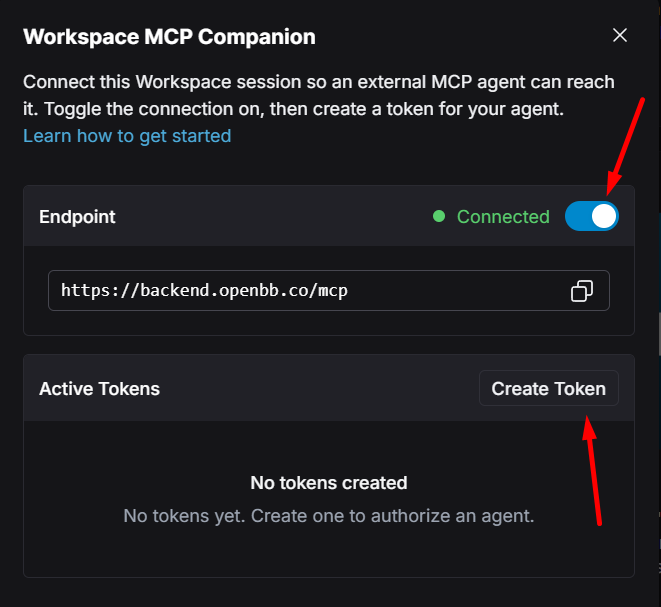
Each user has one active Workspace MCP browser bridge. If you connect from another tab or device, the latest bridge replaces the previous one.
Token creation is only available while the bridge is connected, so complete this step first.
3. Create a Workspace MCP token
In the companion modal, under Active Tokens:
- Click Create Token.
- You should now see a screen like below, now enter a token name and click Generate Token.
- Copy the token connection string from the field shown in the dialog after generating.
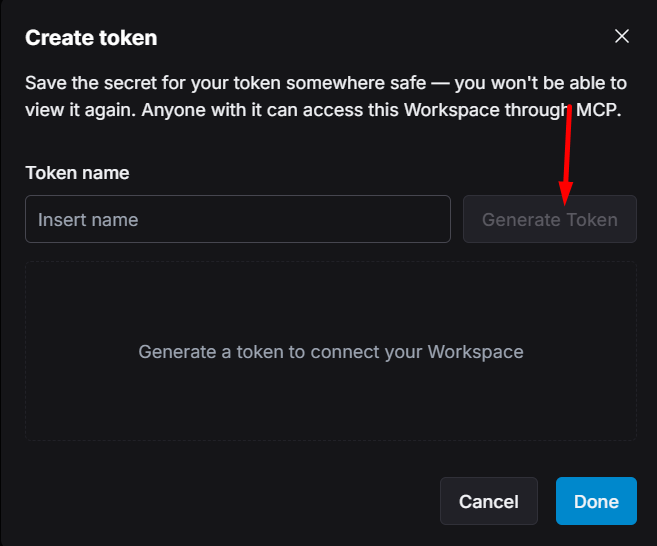
Workspace MCP tokens are personal access tokens for MCP. They are sent as bearer tokens to /mcp, remain valid until revoked, and do not authenticate normal Workspace API routes.
4. Configure your MCP client
After the token is generated, the same dialog shows ready-to-paste connection snippets with the endpoint and token already filled in:
- Prompt: a natural-language instruction you can paste into any agent that can configure its own MCP servers.
- .mcp.json: an HTTP server entry for clients that read an
.mcp.jsonfile. - Claude Code: a
claude mcp addcommand. - Codex: a
codex mcp addcommand.
Pick the tab for your client and copy the snippet. That is usually all the configuration you need.
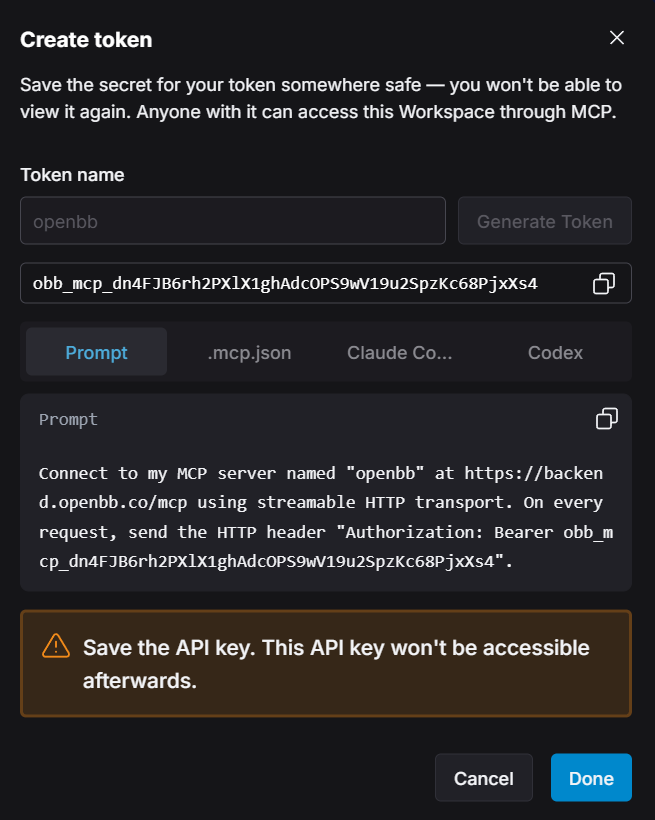
For other clients, use the endpoint copied from Workspace MCP Companion and send the token as an HTTP authorization header:
Authorization: Bearer obb_mcp_...
For clients that read a project .mcp.json file, the entry looks like this:
{
  "mcpServers": {
    "openbb": {
      "type": "http",
      "url": "https://pro.openbb.co/mcp",
      "headers": {
        "Authorization": "Bearer obb_mcp_..."
      }
    }
  }
}
Replace the URL with the endpoint shown in Workspace MCP Companion.
For Codex, the snippet stores the token in an environment variable and points Codex at the hosted /mcp endpoint:
export OBB_MCP_TOKEN=obb_mcp_...
codex mcp add openbb \
  --url https://pro.openbb.co/mcp \
  --bearer-token-env-var OBB_MCP_TOKEN
For Claude Code:
claude mcp add --transport http openbb \
  https://pro.openbb.co/mcp \
  --header "Authorization: Bearer obb_mcp_..."
If your client has an mcp add command or settings UI, choose the HTTP transport, use the hosted /mcp URL, and configure the same Authorization header.
5. Validate the connection
Ask the agent to call get_workspace_snapshot. A successful call should return the active Workspace state, including dashboard metadata and the current dashboard composition when available.
A practical validation prompt is:
Call get_workspace_snapshot and tell me the active dashboard id and the visible tabs.
If the agent can list the dashboard and tabs, the MCP client, hosted MCP endpoint, and browser bridge are connected.
6. Try common Workspace actions
After the connection is working, ask the agent to read data from Workspace or add a widget to the current dashboard. The agent should inspect the live Workspace state first, then call the relevant MCP tools with identifiers from the snapshot.
For reading data, use a prompt like:
What data do you see on this dashboard and tab?

For adding a widget, use a prompt like:
Analyze my current portfolio exposure and add a markdown note widget with that analysis in the same tab that is open

Troubleshooting
| Symptom | What to check |
|---|---|
Could not validate Workspace MCP credentials | Confirm the MCP client sends Authorization: Bearer <token> and that the token has not been revoked. |
No active Workspace browser connected | Open Workspace, open Workspace MCP Companion, and turn on the connection toggle. |
| Tool call times out | Keep the Workspace tab open and active enough to execute commands. |
| MCP client cannot connect | Confirm the client supports HTTP MCP servers and uses the hosted /mcp URL copied from Workspace MCP Companion. |
| Agent sees out-of-date dashboard state | Call get_workspace_snapshot again after navigation or reconnect the browser bridge. |